
Pick your apps
Each Kluvan app works on its own: Books for accounting, CRM for customers, Inventory for stock, HR for people, and so on. You switch on the apps you need, and each app you switch on links to the others. During the 30-day trial every app is open, so you can try them all.
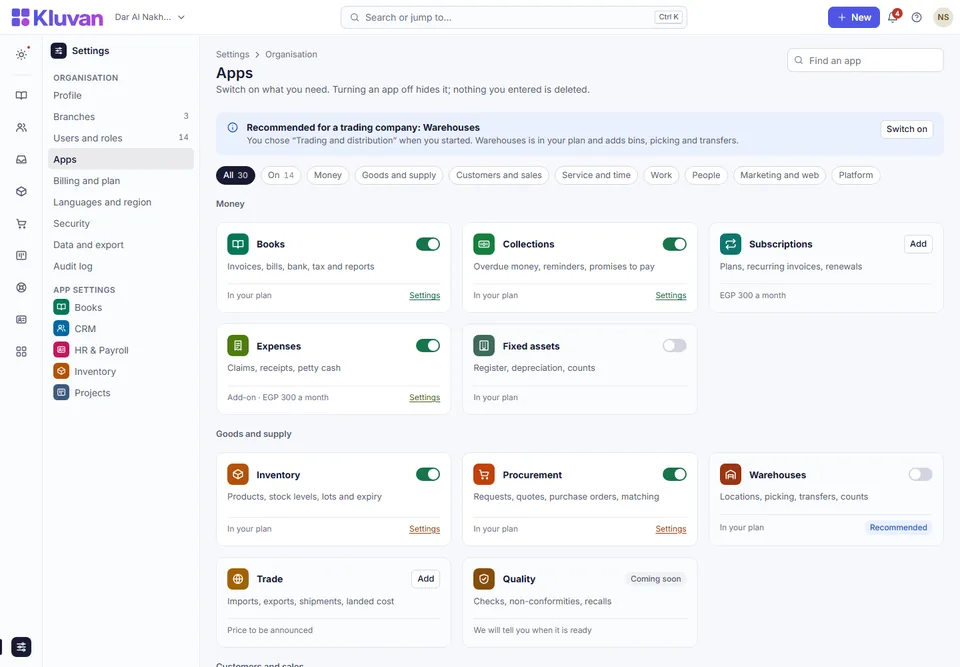
Switch an app on or off
You need to be the owner or a manager.
- Open Settings → Apps.
- Find the app. Each card says what it does and whether it is Included in your plan, can be added on top of your plan, or Needs another app first.
- Choose Switch on. The app's pages appear in the menu for everyone allowed to use them.
- To hide an app you do not use, choose Switch off.
Switching an app off hides its pages. Nothing is deleted: switch it on again and every record is where you left it.
Apps that need another app
Some apps build on another one. Procurement, Trade and Production need Inventory; Collections, Fixed assets and Group need Books. The card says which app to switch on first, and Kluvan will not switch off an app that another switched-on app still needs.
Apps and your plan
- During the trial, every app is open, whichever plan you pick.
- After the trial, your plan decides which apps you can switch on: one app on its own, a bundle, or Kluvan One with every app. See Plans and bundles.
- An app outside your plan can be added on top of it, each on its own, from Plan & usage. Adding one never switches on any other app. See Change your plan or add an app.
Which apps to start with
| Your business | Start with |
|---|---|
| Trading and distribution | Books, Inventory, Procurement, CRM |
| Service and maintenance | Books, CRM, Field jobs, Desk |
| Contracting and projects | Books, Projects, Procurement, HR |
| Agency or professional firm | Books, CRM, Projects, Subscriptions |
| Clinic, salon or studio | Books, Bookings, CRM, Subscriptions |
Start small: two to four apps are enough for the first week. Add the others when the team is comfortable.
Start from your bundle
If you bought a bundle, or are trying Kluvan One, follow its first-week path: the apps it has, the order to switch them on, the seats to give, and the first job in each app.
- Get started with Sales & Customer Care
- Get started with Service Business
- Get started with Trade Business
- Get started with Kluvan One
Good to know
- With several branches, an app can be switched on for one branch and off for another.
- The Your apps row on Today gives one-click access to every app you switched on.
- Next: invite your team.
Was this page helpful?
Thank you. Your answer helps us improve this page.
Still need help?
Chat with us on WhatsApp. Tell us what you were doing and, for an error, the code after the # in the link.