
Create and issue an invoice
An invoice records what a customer owes you. You can save it as a draft as often as you like; issuing it gives it its number, posts it to the ledger and adds the amount to the customer's balance.
Before you start
- You need the Books right Manage sales documents and payments.
- The customer must already exist. Books lists your existing customers.
Steps
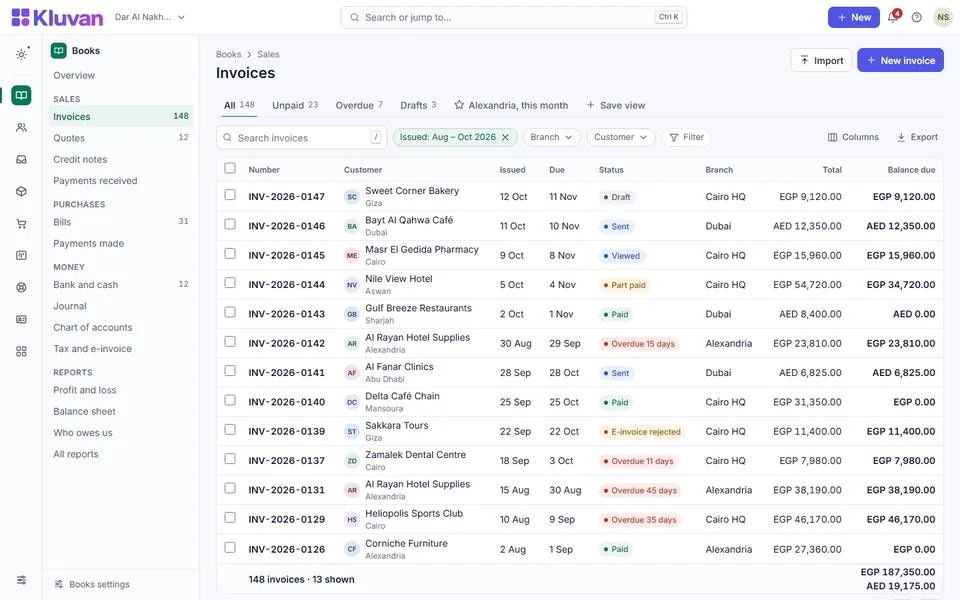
- Open Books → Invoice. The list shows the invoices of the month you choose.
- Select + Invoice.
- Choose the customer from the list.
- Set the Date and the Due date. Add a Reference (for example the customer's order number) if you have one.
- Check the Address and Email copied from the customer.
- Tick or clear Prices include VAT for this invoice.
- On each line, type the Description, Quantity, Unit and Unit price. Add a Discount as an amount or in Percent % if needed.
- Choose the Tax code and, if the line should not go to your default income account, the Account.
- To sell an item from your catalogue, choose it under Add item and select Save · Add item.
- Add a document Discount, Payment terms and Notes if needed.
- Select Save · Draft. Use Save · Use 20 lines if you need more lines.
- When the draft is right, select Post entry · Invoice.
Good to know
- Invoice numbers run INV-000001, INV-000002 and so on, with no gaps. A draft has no number yet, and a failed issue does not use one.
- An issued invoice cannot be edited. Correct it with a credit note: see Issue a credit note or refund.
- VAT is worked out for the whole document and rounded once on the total. UAE guidance rounds per line, so small differences can appear; have your accountant review your invoices before you rely on them for tax.
- Some statutory fields of a full tax invoice are not printed yet, and there is no PDF made on our server. You print or save a PDF from your browser. See Send an invoice or quote.
- An invoice for stock items normally follows a delivery note, which moves the stock: see Orders and deliveries.
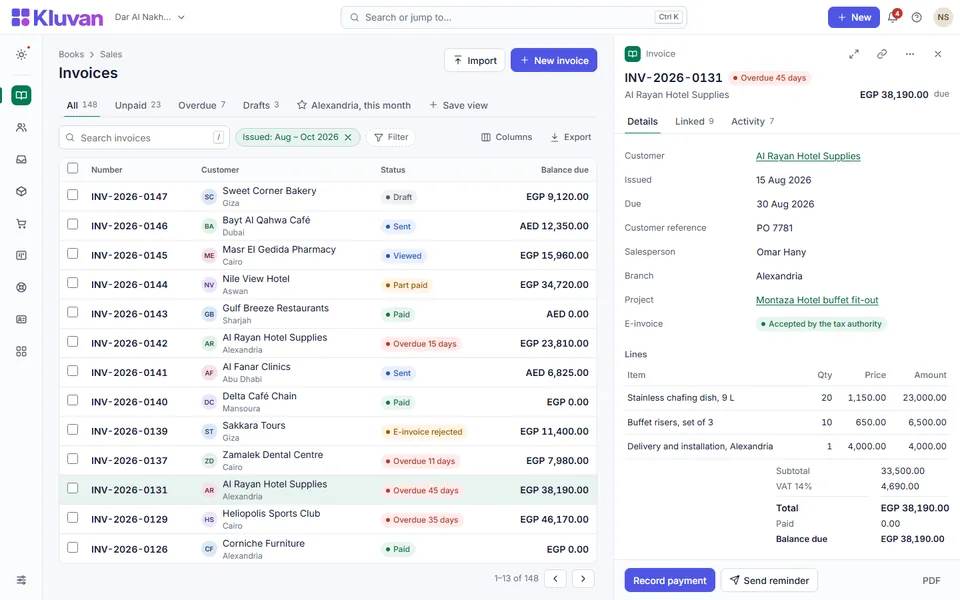
- Status shows Unpaid, Partly paid or Paid as payments come in. See Record a customer payment.
- Assign a Salesperson or a Cost centre on the draft if you use them. See Customer prices and salespeople and Cost centres.
- For an invoice in another currency, see Foreign currency. Country rules for VAT and e-invoices: Egypt, UAE.
Was this page helpful?
Thank you. Your answer helps us improve this page.
Still need help?
Chat with us on WhatsApp. Tell us what you were doing and, for an error, the code after the # in the link.