
Switch on HR and choose who sees it
HR stays hidden until the owner switches it on. After that, only the owner sees HR until they tick rights for other users, one by one.
Before you start
- You must be the owner of the organisation. Managers cannot switch HR on or give HR rights.
- HR is an app: add it first if your organisation does not have it. See Pick your apps.
- Invite the people who will work in HR as users first. See Invite your team.
Steps
- Open HR → HR settings.
- Under Switch HR on, tick HR: employee files, documents, leave, payroll and select Save.
- If the page says Switch Staff on first, open Staff settings from the link on the same line, switch Staff on, then come back and repeat step 2.
- Go to Who may see HR. Each user has three ticks:
- See HR files: read employee files, documents and time off.
- Manage HR (files, documents, leave): change files, add documents, approve time off and run rosters.
- Salaries and payroll: see pay, bank details, payroll runs and payslips.
- Tick the rights each user needs and select Save.
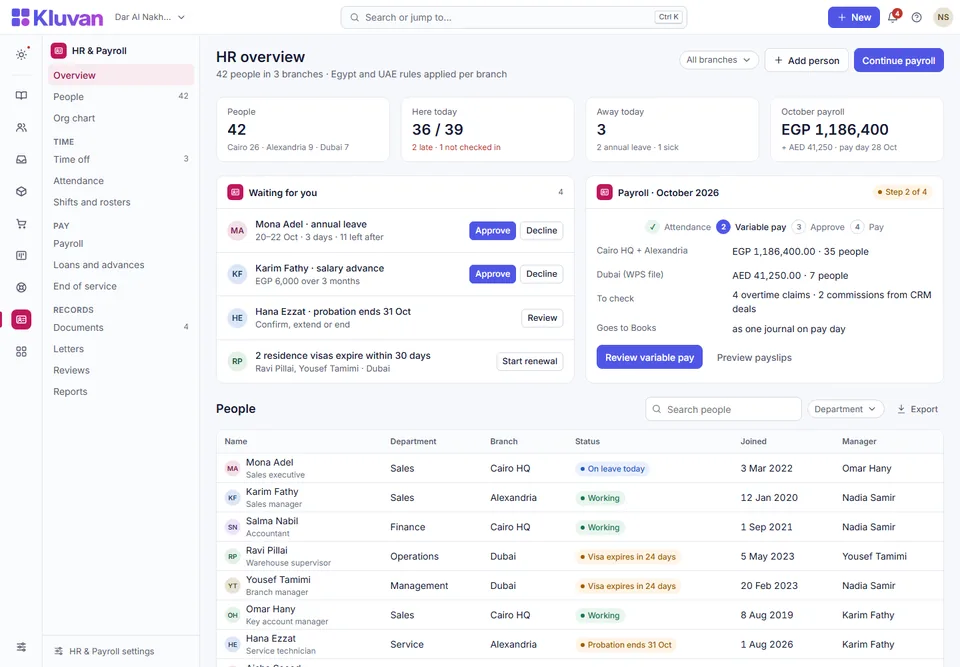
- Open HR → People to see the overview.
[SHOT hr-settings-access 1440x900]Screenshot to come: HR settings: the Switch HR on box ticked, and below it the Who may see HR table with three users and three tick columns (See HR files, Manage HR, Salaries and payroll)
Good to know
- A manager has every other right in Kluvan, but not HR. HR rights are a separate list, so a manager sees nothing in HR until you tick it.
- Without Salaries and payroll, pay fields are never sent to that user at all, so they cannot be revealed from the page. If that user saves an employee file, the stored pay stays as it was.
- Every look at salaries and every change to a file is written to the activity log, with the field names but never the values. The activity log keeps 13 months.
- Branch limits on a user do not apply inside HR: a user with HR rights sees the people of every branch.
- Switching HR off hides it again. Nothing is deleted, and no reminders are sent while it is off.
- Payroll needs the Payroll app as well as the Salaries and payroll right.
- More about rights in general: Roles and rights.
Next: Add people and fill in their employee files.
Was this page helpful?
Thank you. Your answer helps us improve this page.
Still need help?
Chat with us on WhatsApp. Tell us what you were doing and, for an error, the code after the # in the link.